

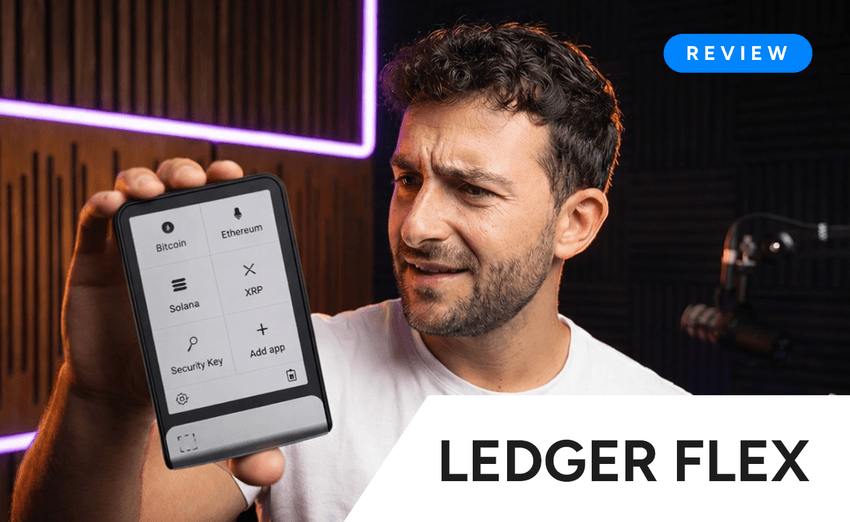

For anyone serious about protecting their crypto, a hardware wallet is no longer just a nice upgrade. Self-custody has become one of the most important parts of long-term crypto security, especially as exchange failures, phishing scams, and fake wallet apps continue to target users. That is where Ledger Flex enters the conversation.
The Ledger Flex is positioned as a secure touchscreen hardware wallet for users who want offline key storage without the clunky experience often associated with older devices. Airdrops.com’s current article already highlights the same core appeal: easier navigation, a more premium build, and a setup flow that feels more approachable than older button-based wallets.
What makes Ledger Flex stand out on paper is the combination of a 2.8-inch E Ink touchscreen, high-resolution grayscale display, Gorilla Glass, and support for USB-C, Bluetooth, and NFC. Ledger also presents the device as part of its newer secure touchscreen line, designed around easier navigation and clearer transaction verification.
That last point matters more than the design language. Ledger’s own materials repeatedly emphasize the value of viewing and verifying actions on the secure screen itself, tying the device to features such as Clear Signing and Transaction Check, which are intended to help users spot common mistakes or scams before approving a transaction.
Buy Ledger Flex here:
Browse the official Ledger store:
What is Ledger Flex and who is it for?
Ledger Flex looks aimed at users who want something more modern than a classic hardware wallet, but who do not necessarily need the most premium model in the lineup. The current Airdrops.com article positions it as a middle-ground option: more premium and user-friendly than Nano Gen5, but less expensive than Ledger Stax. That framing also matches Ledger’s broader hardware-wallet comparison pages, where Flex is presented as part of the touchscreen tier rather than the basic backup tier.
In practical terms, that makes Ledger Flex especially attractive for two types of users: beginners moving from exchange custody to their first hardware wallet, and existing Ledger users who want a larger screen and easier on-device interaction without stepping all the way up to the Stax form factor.
What comes in the box
Ledger’s official unboxing guide says the package includes the Ledger Flex device, a USB-C to USB-C cable, three blank Recovery Sheets for your 24-word Secret Recovery Phrase, a getting-started leaflet, and a Ledger Recovery Key card designed as an additional backup option.
One detail here is especially important for trust and safety: Ledger says it does not rely on anti-tamper seals as a security guarantee, because those can be counterfeited. Instead, security is built into the setup process and the device authenticity check. That is useful context to include in the article, because many readers still assume “sealed box” equals “safe device,” which is not how Ledger frames it.

How to set up Ledger Flex
The setup process should be one of the main SEO sections in the rewrite, because this is exactly the kind of practical query users search after discovering a new hardware wallet. Ledger’s support materials say setup for Ledger Flex is handled through Ledger Wallet — the current name used in official docs for the app formerly known as Ledger Live — and they strongly recommend using the official site for downloads.
1. Download Ledger Wallet from the official source
Ledger’s official setup materials say you should download Ledger Wallet only from the official website. That warning is not a formality: Ledger’s scam guidance documents ongoing phishing attempts involving fake apps, fake update pages, and malicious websites asking for your recovery phrase.
2. Pair the device and run the Genuine Check
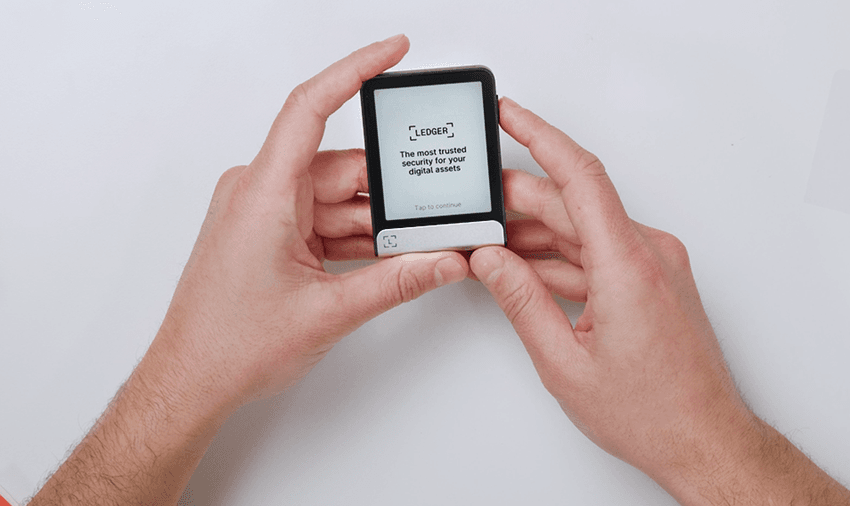
According to Ledger’s unboxing and setup guide, after powering on the device, you pair it with Ledger Wallet and perform a cryptographic Genuine Check to verify that the device is authentic. This is one of the most important trust steps in the entire onboarding flow and should be stated clearly in the article.
3. Set a device name and create a PIN
Ledger says users are prompted to name the device and set a 4- to 8-digit PIN during setup. The same guide says the device wipes itself after three incorrect PIN attempts, which is another useful detail for a practical setup article because it explains both the security model and the recovery expectation.
4. Create a new wallet or restore an existing one
If you are starting fresh, Ledger says the device generates a 24-word Secret Recovery Phrase. If you are moving from another Ledger or another BIP-39-supported wallet, you can restore using your existing phrase instead. That distinction matters because many readers arrive on articles like this specifically to understand whether they are creating a new wallet or migrating an old one.
5. Write down the 24-word Secret Recovery Phrase offline
This is the single most important rule in the whole setup. Ledger’s guidance is explicit: write the phrase down offline, confirm it on the device, and never type it into software, websites, chat windows, or email forms. Ledger says it will never ask for your 24-word Secret Recovery Phrase, and any request for it is a scam.
6. Install firmware updates and apps
Once the wallet is initialized or restored, Ledger Wallet guides the user through any necessary firmware updates and then lets them install asset-specific apps from the app catalog. This is also where the broader Ledger ecosystem becomes relevant, because the device is meant to work as the secure signing layer while the app handles portfolio management and access to services.

Security features that actually matter
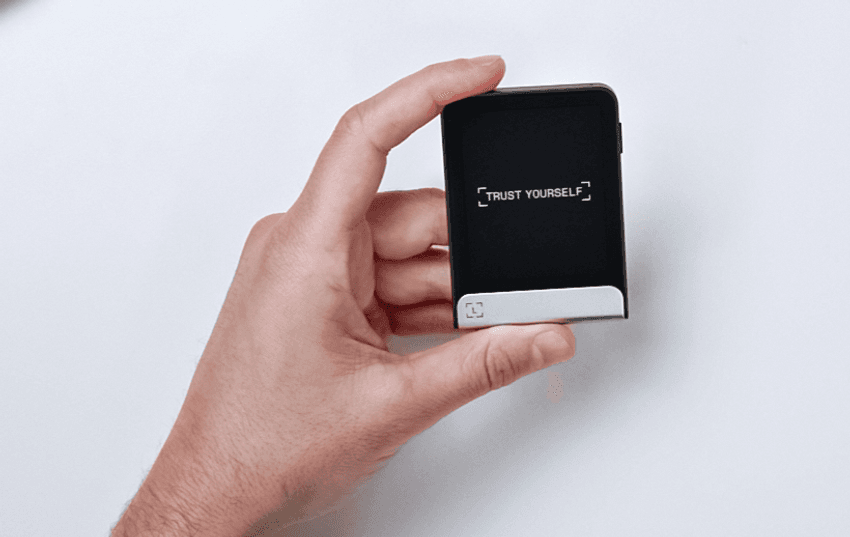
A lot of hardware-wallet articles stop at “your private keys stay offline,” but that is not enough anymore. Ledger’s own educational content goes further, explaining that the private keys remain inside a Secure Element chip, while the secure touchscreen is used so the user can verify what they are signing directly on the device.
Ledger presents this as a key part of its Clear Signing model. Ledger also says the Flex can act as a Ledger Security Key for two-factor authentication and passwordless logins on supported platforms, expanding its role beyond simple coin storage.
Connectivity is another part of the value proposition. The official product pages show support for USB-C, Bluetooth, and NFC, which makes Flex more versatile than older devices for users who move between desktop and mobile environments.
The biggest safety warning every reader should see
The strongest version of this article should include one blunt warning near the middle, not buried at the end:
Never enter your 24-word Secret Recovery Phrase anywhere except on your Ledger device during setup or recovery.
Ledger’s security pages are unambiguous on this point. They warn about phishing emails, fake Ledger Wallet apps, fake websites, scam phone calls, and even physical mail scams that try to pressure users into “verifying” or “restoring” their wallet by exposing the phrase. Ledger says any such request is fraudulent.
Another practical detail worth adding is that a legitimate Ledger device should never come preconfigured with a PIN or a pre-written recovery phrase. Ledger’s anti-scam guidance says a pre-seeded device is unsafe and can lead to immediate theft once funds are deposited.
Ledger Flex vs Ledger Stax vs Nano Gen5
Stax is the more premium and more expensive option, Nano Gen5 offers the same basic security architecture in a more compact form, and Flex sits in the middle as the more approachable touchscreen choice for everyday use.
From Ledger’s official comparison pages, the broader pattern is the same: Flex belongs to the secure touchscreen category, with a 2.8-inch E Ink screen and multiple connectivity options, while Stax pushes further on premium screen design and Nano models remain the more stripped-down alternatives.
Final verdict
The Ledger Flex looks like a strong option for users who want a modern hardware wallet without losing sight of the core principle of self-custody: your keys stay under your control, and sensitive actions are verified on a secure device. The touchscreen, Clear Signing focus, official setup flow, and broad Ledger ecosystem make it easier to recommend than a purely spec-driven wallet with weaker usability.
The main issue with the current Airdrops.com article is not that it is wrong. It is that it leaves too much SEO value on the table. A stronger rewrite should answer the questions readers are actually asking — What is Ledger Flex? How do I set it up? How secure is it? What should I do with the recovery phrase? How does it compare to other Ledger devices? — and answer them early, clearly, and with better subhead structure.


